Netflix subtitle sync issues are frustrating because viewers usually cannot edit the subtitle file directly inside the official app. If the official caption track is out of sync, the fix is often a playback, device, language-track, or app issue rather than an SRT editing workflow.
Some browser extensions and custom workflows claim to load external subtitles with streaming video, but they may be limited, unreliable, or outside the normal platform experience. Use caution and respect platform rules and content rights.
This guide explains practical, safe troubleshooting steps for Netflix subtitle sync and clarifies when subtitle timing tools apply to files you control outside official streaming playback.
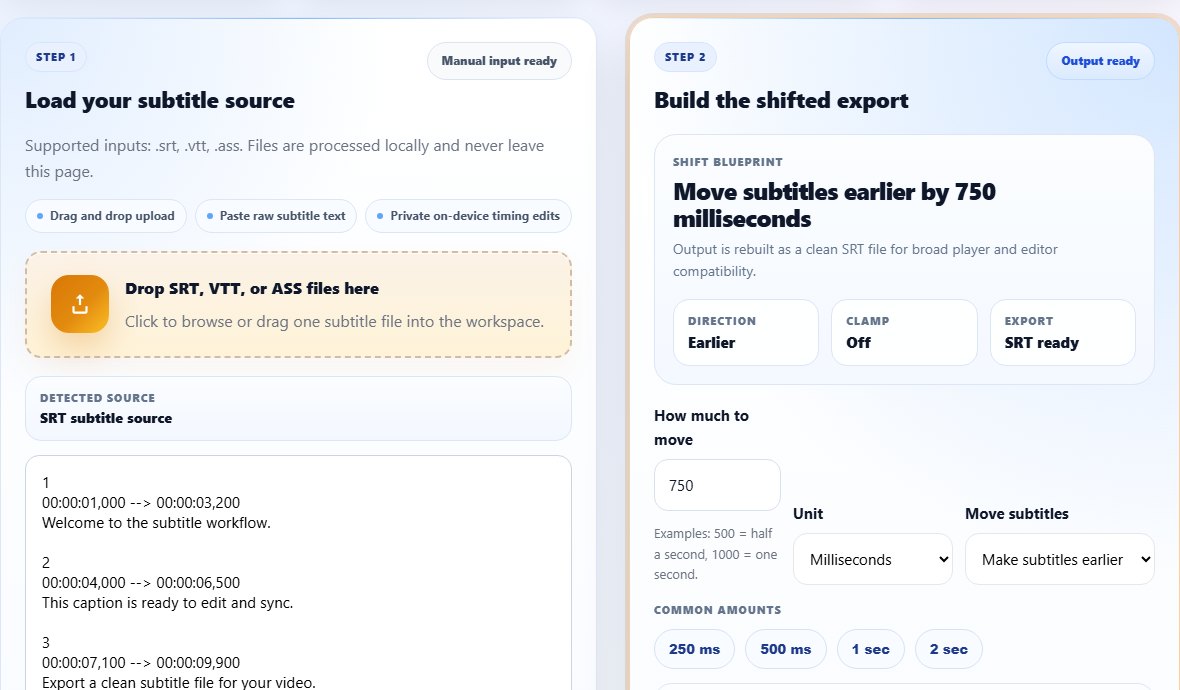
What you can control in Netflix subtitle sync
In official Netflix apps, subtitles are platform-managed tracks. You can usually choose language and display options, but you cannot normally shift the official caption timing like you would with an external SRT in VLC.
If one subtitle language is out of sync, test another language or audio track to see whether the problem is tied to a specific track. If all tracks are delayed, the issue may be app playback, device performance, network buffering, or a temporary platform problem.
Refreshing playback often helps. Restart the title, reload the app, update the device, or test another device. If the issue appears only on one device, focus on device troubleshooting rather than subtitle repair.
Subtitle editing tools are useful when you own or control the subtitle file. For official streaming playback, you usually cannot export, edit, and re-upload the platform's subtitle track.
Do not bypass DRM or platform restrictions. Use timing tools for subtitle files you own, manage, or are permitted to edit.
Useful diagnosis:
Only one language out of sync -> track issue
Only one device out of sync -> device/app issue
Every title out of sync -> playback environment issue
Step-by-step: troubleshoot Netflix subtitle sync
These steps focus on the official playback experience. They do not require editing or extracting platform subtitle files.
Pause and restart playback from a few seconds before the sync issue.
Switch subtitles off and back on.
Try another subtitle language or audio track if available.
Reload the title or restart the Netflix app.
- Pause and restart playback from a few seconds before the sync issue.
- Switch subtitles off and back on.
- Try another subtitle language or audio track if available.
- Reload the title or restart the Netflix app.
- Test the same title on another device or browser.
- Update the app, browser, or device software if needed.
- Check whether the issue appears in one title or many titles.
- Report persistent title-specific sync issues through official support channels.
Practical examples
Real subtitle work usually fails at boundaries: the first spoken line, a scene change, a translated phrase that becomes longer, or a platform upload that expects a different format. Use the examples below as a quick quality check before you export.
If subtitles are synced on a phone but delayed on a TV app, the TV app or device is the likely problem.
If English is synced but another subtitle language is not, the issue may be with that track.
If you are watching a video file you control outside Netflix, use a subtitle shifter on the external SRT.
The viewer tries to edit subtitles they cannot access inside the official streaming app.
The issue is tested by track, device, title, and playback environment before any support report.
Common mistakes to avoid
Most subtitle problems become harder when the source file is edited without a plan. Keep an original copy, make one focused change at a time, and test the output in the environment where viewers will actually use it.
- Assuming a local SRT fix applies to official Netflix subtitles.
- Ignoring device-specific playback problems.
- Testing only one language track.
- Using questionable tools that bypass platform restrictions.
- Reporting a problem without checking another device.
- Confusing audio delay with subtitle delay.
Conclusion
Netflix subtitle sync is different from editing an SRT file because official tracks are controlled by the platform. Your best troubleshooting path is track selection, playback refresh, device testing, and support reporting for persistent title-specific problems.
For subtitle files you own outside streaming apps, the normal timing workflow applies: measure the offset, shift the file, and preview the result.
Related tools
Use these TranslateSubtitles.net tools when you are ready to apply the workflow from this guide.
Related guides
FAQ
Can I shift Netflix subtitles in the official app?
Official apps generally do not provide the same subtitle offset controls as local video players.
Why are Netflix subtitles out of sync on one device?
The issue may be device performance, app state, software version, or playback environment.
Can I use Subtitle Shifter for Netflix?
Use timing tools for subtitle files you control. Official Netflix caption tracks usually cannot be edited directly by viewers.
What should I report to support?
Mention the title, episode, language track, device, app version if known, and whether other devices behave differently.